Saving Slicer Scenes
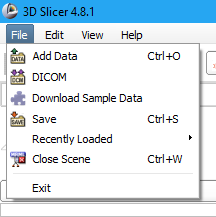
- Click on the ‘File’ menu at the top.
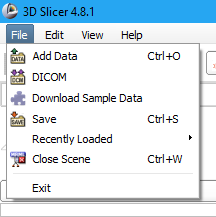
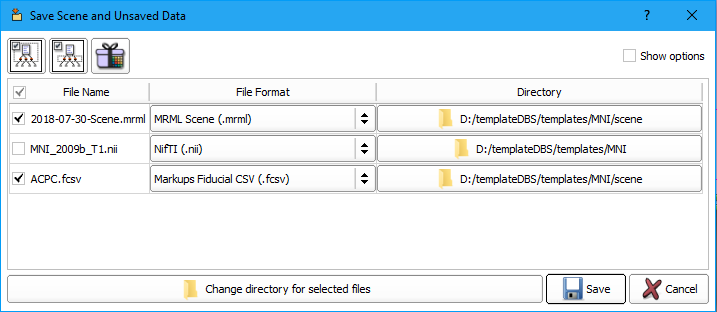
- Choose ‘Save’, the dialog box shwon below will appear.
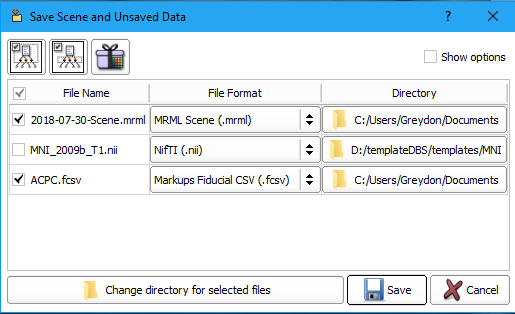
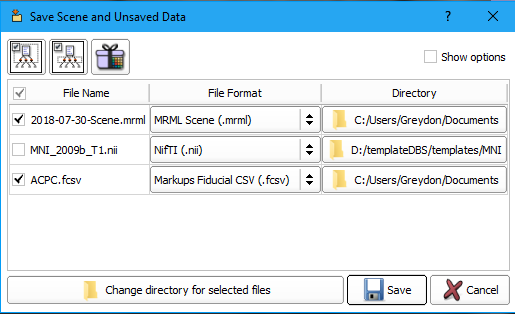
- If this is your first time saving you will have to define the directory to save the files in. Click on ‘Change directory for selected files’. The dialog box below will appear
- Find the directory where you want to save the data, create a new folder called ‘scene’ and then double click on it so you are now within the folder. Select ‘Choose’.
- You will now notice that the .nii file is deselected and is in the original directory location. All the other files you will be saving are in the newly created ‘scene’ folder. Click ‘Save’.
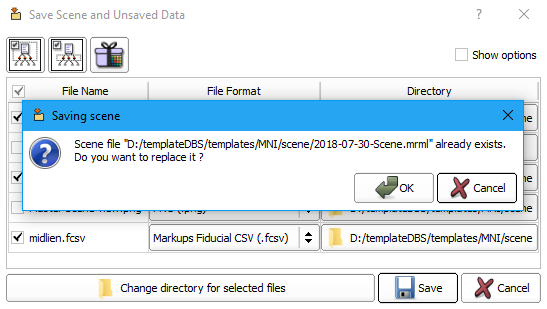
- If this not your first time saving you will see two warning messages. The first will notify you that the .mrml file already exists and ask if you want to replace it. Click ‘OK’.
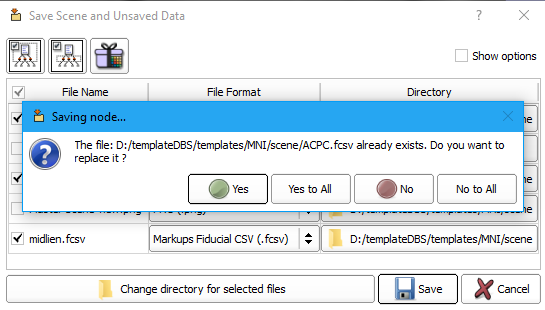
- A second warning message will appear letting you know that the .fcsv file already exists and ask if you would like to replace it. Click ‘Yes to All’. This will overwrite your old datafiles with the newer ones.
- To close the current scene, before opening a new patient, click the ‘File’ menu and select ‘Close Scene’.